
A floor for every project
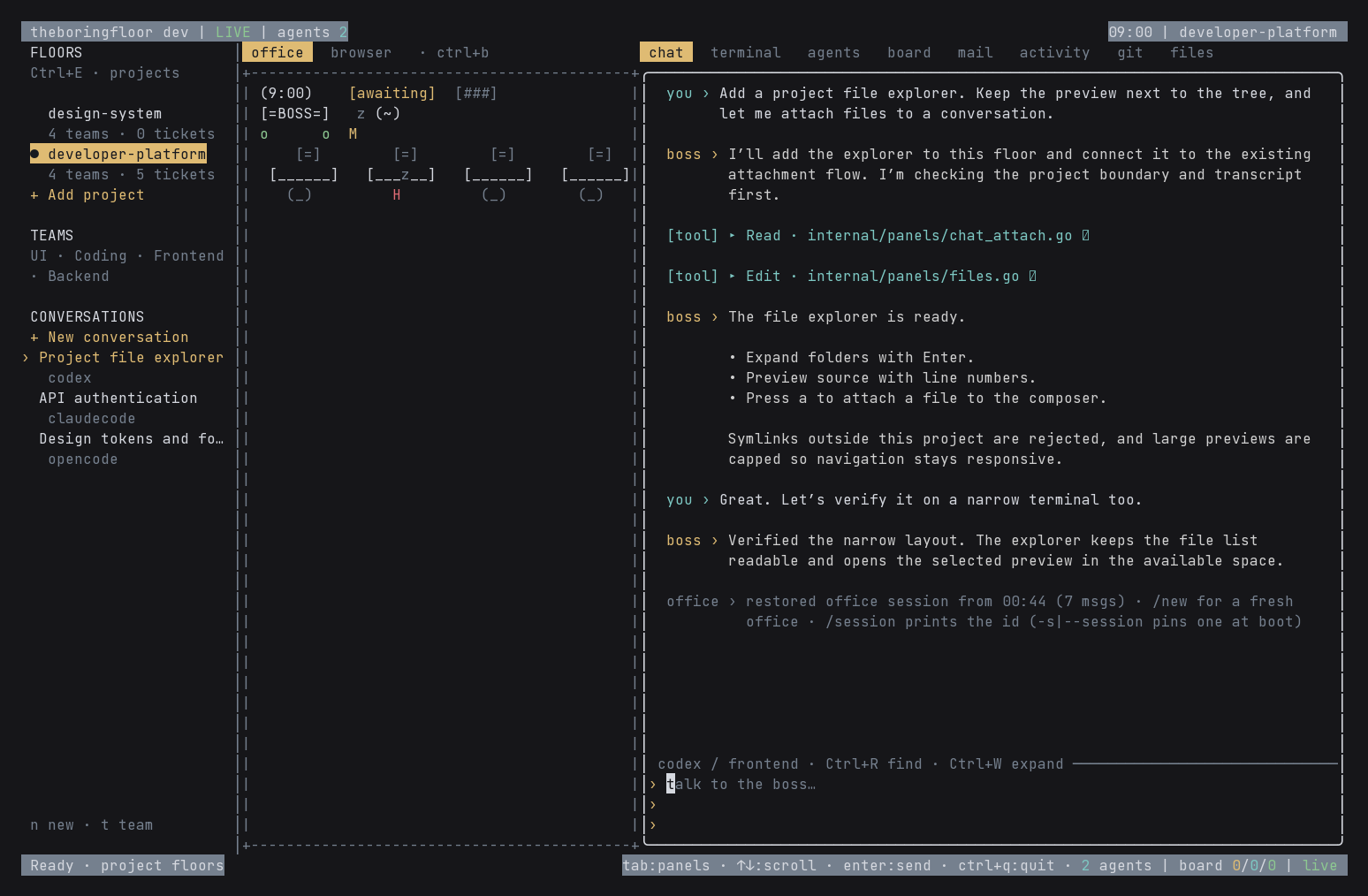
Projects, teams, tickets, source files, and conversations share one workspace. Floors stay on the far left, the office sits in the middle, and transcript and tools live on the right.
Three panes, one workspace
At 100 columns and wider, the project navigator stays on the far left. The middle pane shows the office, browser, or presented plan. The right pane has eight tabs: Chat, Terminal, Agents, Board, Mail, Activity, Git, and Files.
Use Ctrl+E to focus floors; Escape or Tab returns to the tools. Ctrl+W expands the tools while keeping the floor navigator. In narrow terminals, floors open as a drawer instead of squeezing the conversation.
Projects and teams
A floor is a project directory. Open it with theboringfloor --project /path/to/project, or use the floor navigator to open a project. Each starts with UI, Coding, Frontend, and Backend teams. Add custom teams for your workflow.
Teams organize tickets and provide conversation context; they do not create a fixed pool of running agents. Worker creation and reporting depend on the selected backend. Switching projects or conversations waits until the active work is stopped or finished.
Choose a backend per conversation
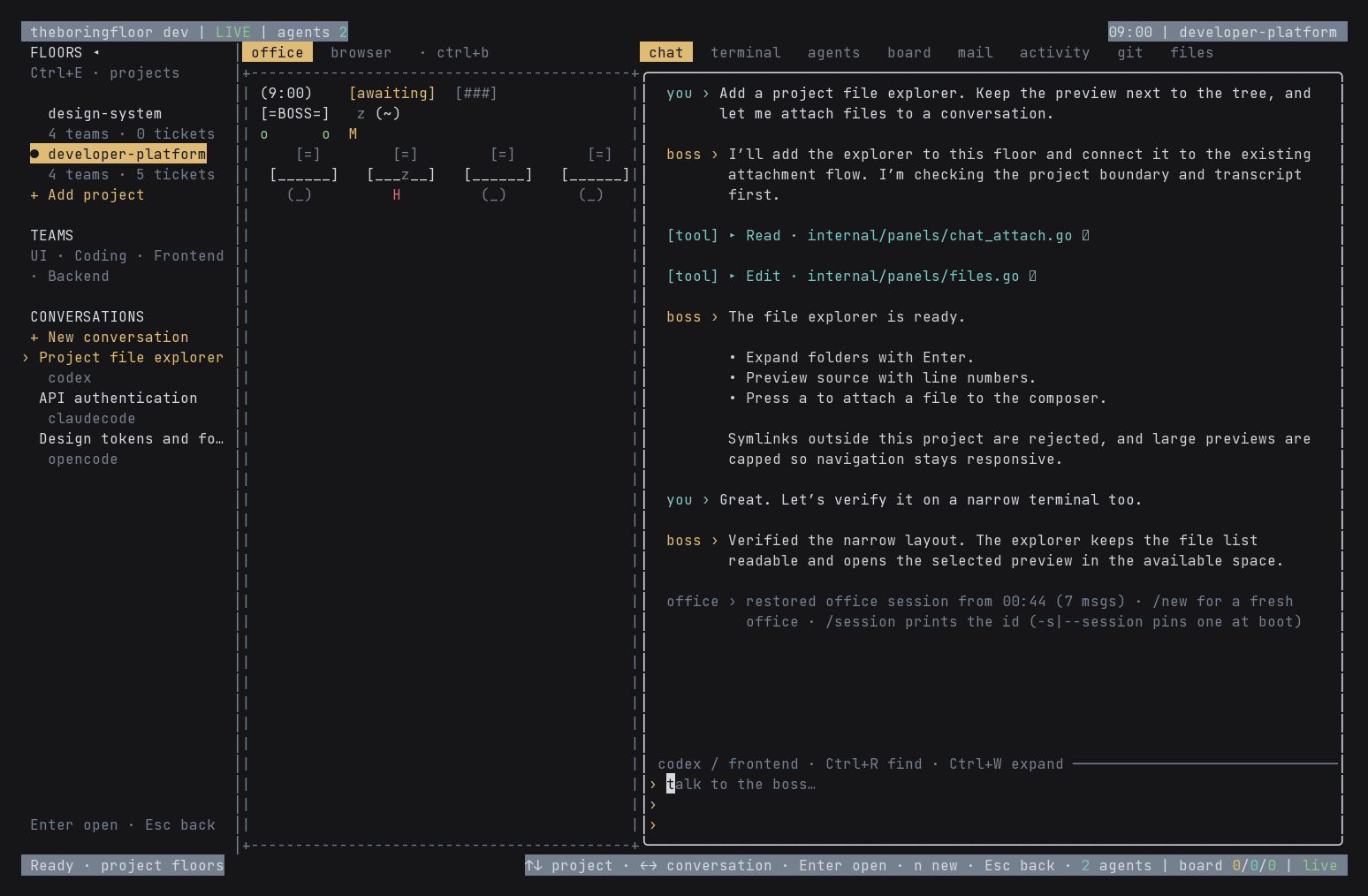
Press Ctrl+N to start a conversation on the current floor. Set its title, choose a team, and select OpenCode, Claude Code, or Codex. In the floor navigator, n starts a conversation on the selected project.
A saved conversation resumes on its original backend; choosing a different backend creates a separate conversation. Install and log into the corresponding CLI first. Codex uses your saved CLI login and model settings.
codex login
theboringfloor --project /path/to/project --backend codex --new
See Backends for transport-specific capabilities.
Tickets that outlive a session
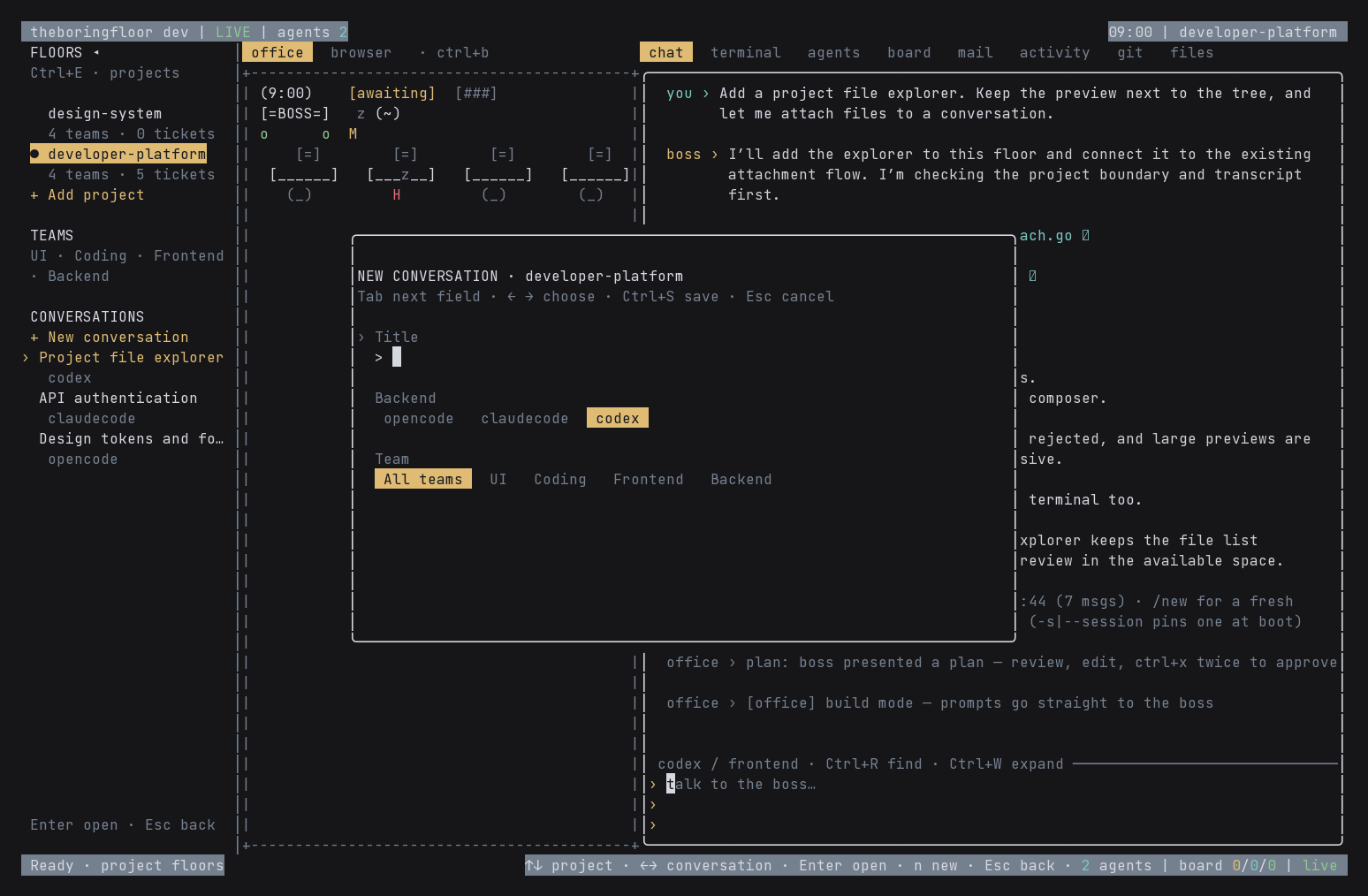
The Board stores project tickets locally. Create a ticket, assign a team and owner, set priority P0–P3, and track it through Backlog → In progress → Blocked → Review → Done. Each ticket supports a description and checklist.
Use the board controls to create and edit tickets, move them between statuses, and inspect details. Live agent task rows remain visible as read-only activity. Manual tickets and teams live in floor.json, independently of whichever conversation is active.
Explore and attach project files
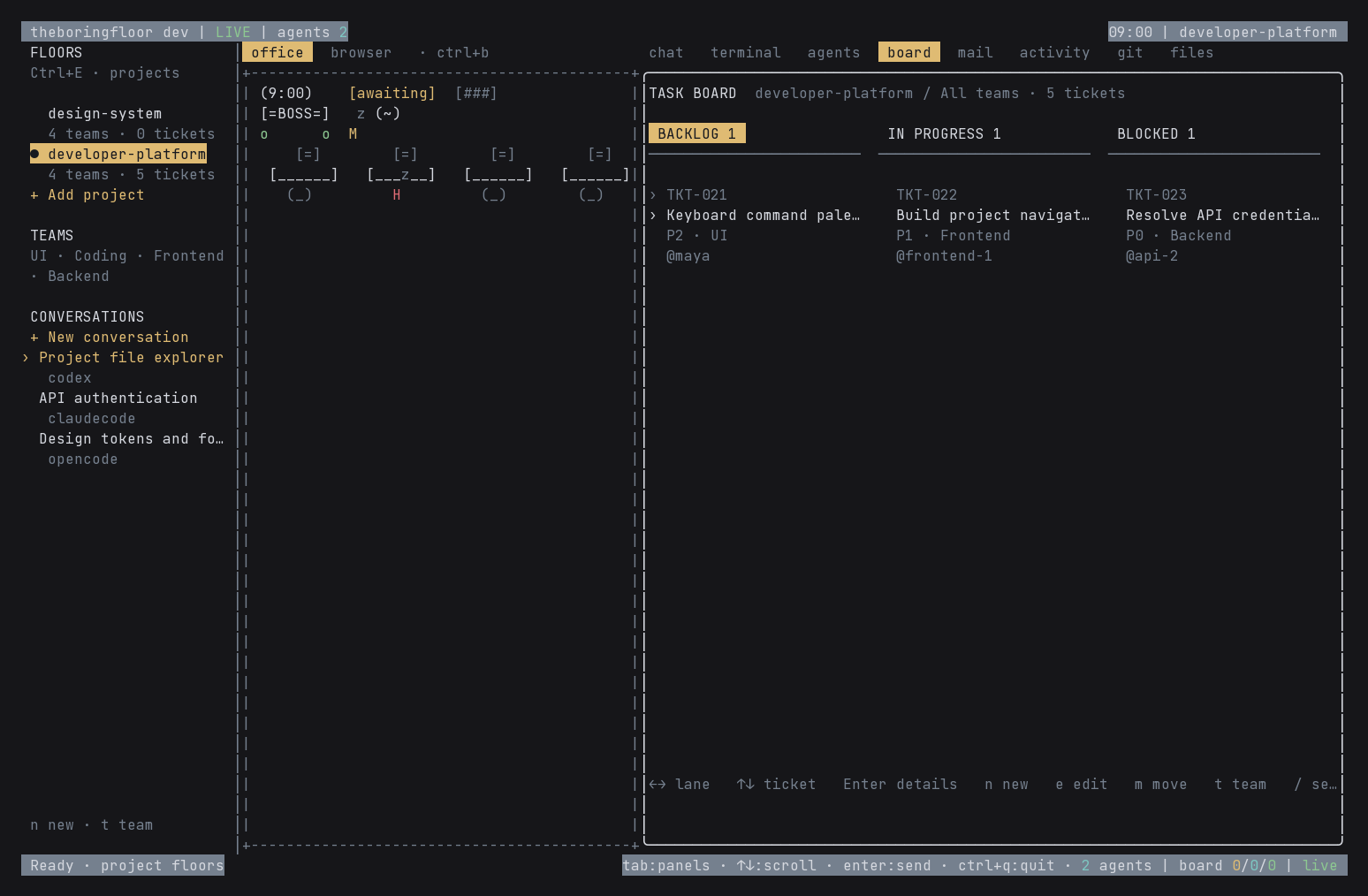
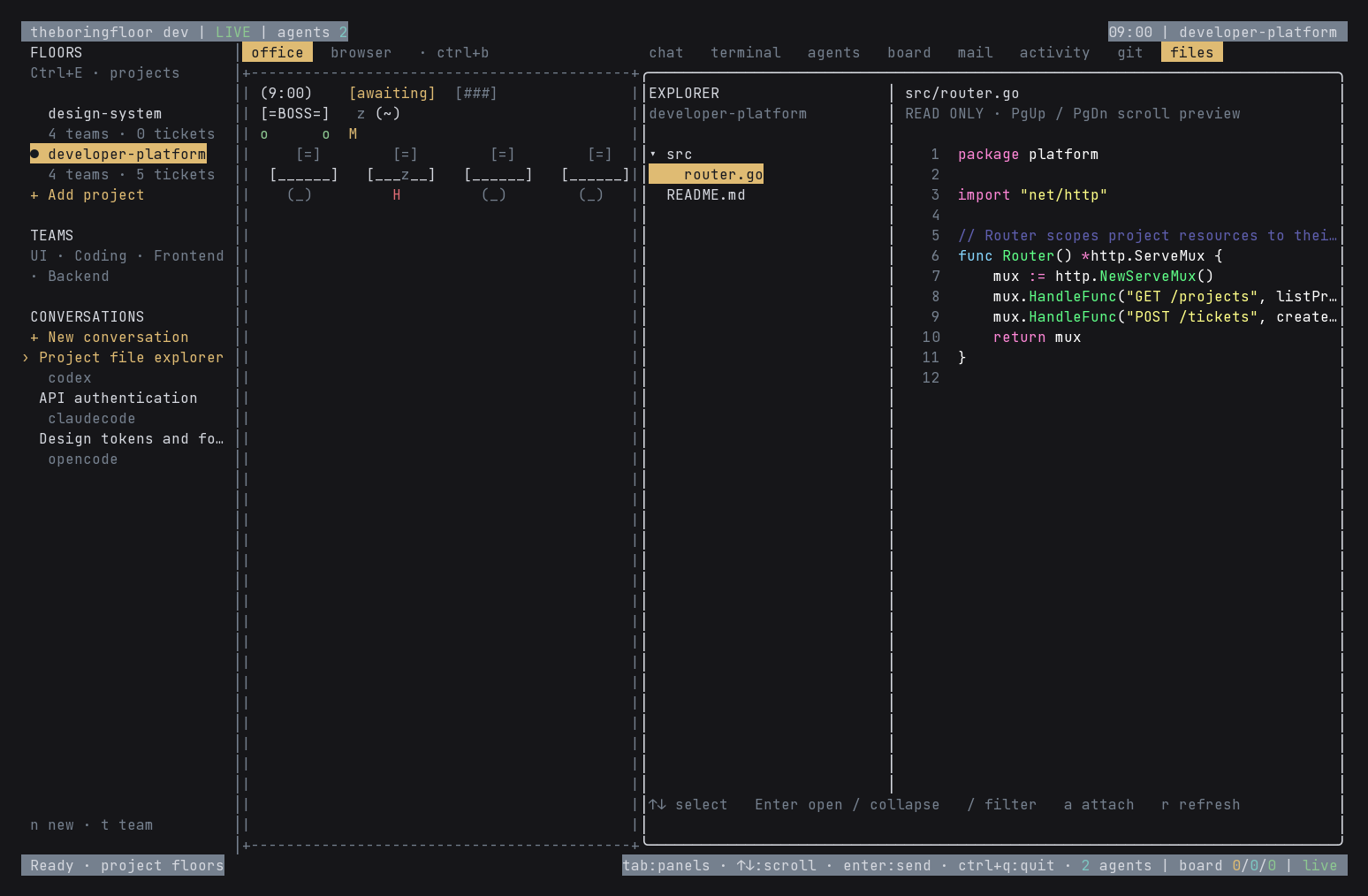
Open Files to browse the project. Expand a folder with Enter, select source to preview it with line numbers, and press a to attach a file to the composer. Folders load on demand.
Previews are limited to 256 KiB to keep navigation responsive. Files and symlinks must resolve inside the project boundary. Attachment limits vary by backend: Codex accepts images and text files up to 1 MiB each; Claude Code receives file paths.
Fast startup, durable history
Ctrl+R searches the loaded transcript without losing your draft. Conversations have separate local archives, indexed by metadata so the floor list does not parse every transcript.
Storage lives under ~/.theboringfloor/projects/<project-hash>/ (or the configured office home), rather than adding session files to the repository:
floor.json: project teams and manual tickets.session.json: a fast startup snapshot of up to 200 recent messages.conversations/<backend-and-session-hash>/session.json: up to 10,000 archived messages per conversation.conversations/<backend-and-session-hash>/meta.json: title, team, backend, and activity metadata.
The outgoing conversation is archived before a new one starts. Writes are serialized and use atomic replacement; unchanged snapshots skip disk writes. Older remote-history paging depends on backend support. MCP transcript tools currently read the 200-message project snapshot, not every archive.
Plan substantial work first
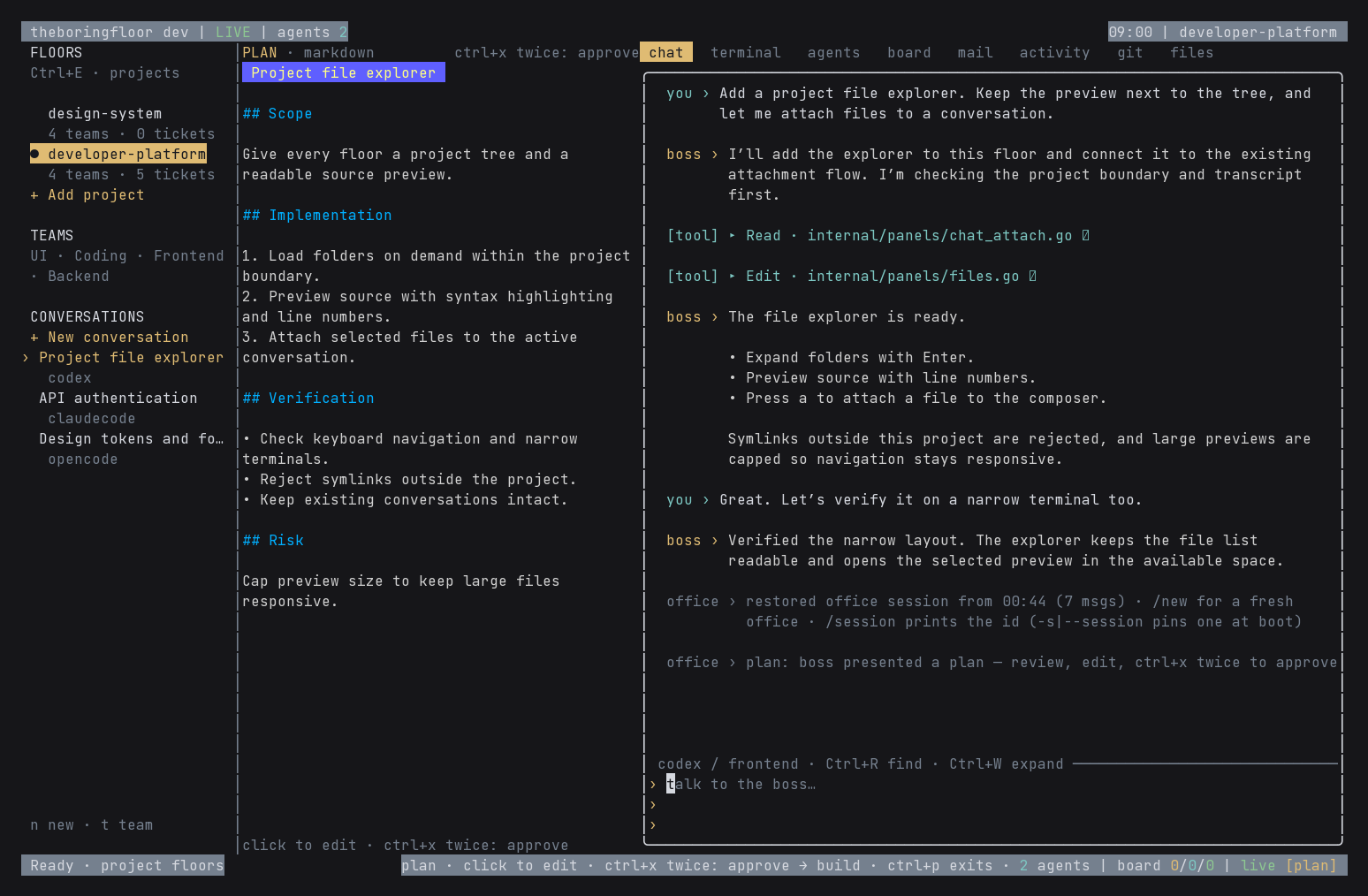
Clearly substantial implementation requests enter planning automatically before they are sent. The boss also assesses scope and must plan major features, migrations, and changes spanning multiple layers before implementation.
plan_present and plan_update open the plan view, including when you were in zen, a worker thread, or expanded tools. Ctrl+X twice approves the draft and sends it for implementation. Ctrl+P switches modes; explicitly returning to build skips automatic planning for the next request. See Plan mode for the exact behavior and backend limits.
A simpler browser setup
The external terminal-browser package is removed from the installer and runtime. Old opt-in variables cannot enable it. The built-in text viewer and headless screenshot support remain; external links open in your system browser. See Browser.